Another Lightroom Question!

Messages
3,281
Name
Graham
Edit My Images
Yes
After a catastrophic hard drive failure I have replaced my entire computer system. I have re-installed Lightroom Classic which has been re-populated with all my folders of photo's.
These are all single folders unless I create a sub-folder of edited jpegs.
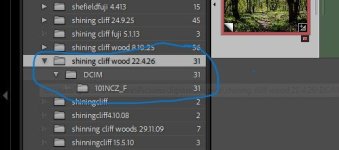
Now when I import a new folder I get this: My named folder... which contains a DCIM folder...which contains a 101NCZ_F folder.
How do I get it to go back to just the one folder? :headbang:
Screenshot (16).jpg
 
After a catastrophic hard drive failure I have replaced my entire computer system. I have re-installed Lightroom Classic which has been re-populated with all my folders of photo's.
These are all single folders unless I create a sub-folder of edited jpegs.
Now when I import a new folder I get this: My named folder... which contains a DCIM folder...which contains a 101NCZ_F folder.
How do I get it to go back to just the one folder? :headbang:

View attachment 480267
For those that have already been imported, simply drag and drop the images from the '101NCZ_F' folder to the 'shining cliff wood 22.4.26' folder.
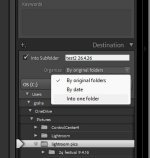
For new imports - check the destination folder settings - somewhere in the options will be something that controls this behaviour (sorry I can't be more specific, I set mine up to work the way I wanted years ago, and haven't touched it since!)
 
For those that have already been imported, simply drag and drop the images from the '101NCZ_F' folder to the 'shining cliff wood 22.4.26' folder.
For new imports - check the destination folder settings - somewhere in the options will be something that controls this behaviour (sorry I can't be more specific, I set mine up to work the way I wanted years ago, and haven't touched it since!)
Thanks for the speedy reply. Yes, I must have done something before and then just left it...no idea what though. I'll have to be a brave little soldier and have a poke around! (y)
 
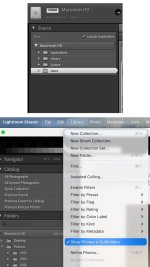
Two places where you can choose to view subfolders; during import, and in the library menu options.


Untitled.jpg

My guess is the issue is the import option. I.e. during import you have the card open, and you select the images. It's basically importing the open folder (card) and the subfolder/images. If you disable the show subfolder option you will have to navigate into the subfolder in order to import the files.
 
Two places where you can choose to view subfolders; during import, and in the library menu options.


View attachment 480317

My guess is the issue is the import option. I.e. during import you have the card open, and you select the images. It's basically importing the open folder (card) and the subfolder/images. If you disable the show subfolder option you will have to navigate into the subfolder in order to import the files.
Ooh that sounds logical...I'll try a sample folder in the morning. (y)
 
Back
Top