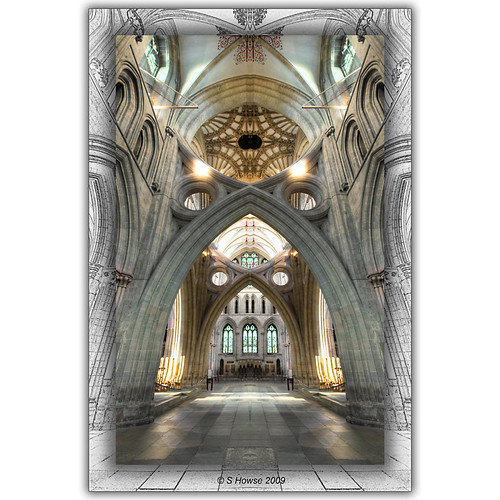
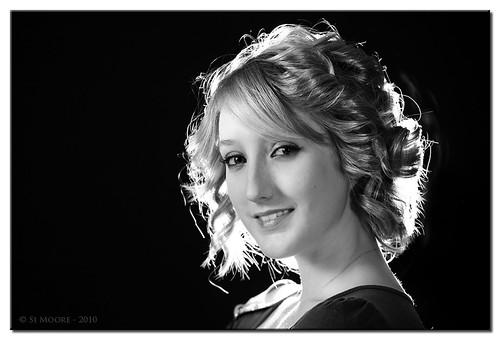
I use Marcias Frame Actions quite a lot with CS3 and in her package there is a thin black frame action which is nice and plain and fits any size image. http://www.atncentral.com/frames.htm
Creative framing is also great. There are several Youtube tutorials showing you how.
I've recently abandoned the use of frames on my images preferring to have just the image. Here is an old image of mine though where a 'craetive frame' was used...
That's pretty good Scott... That's not something I'd considered doing before but I can see how it'd work well with the right kind of image.
I generally do the following:
Resize the image to 1200x800px (ALT+CRTL+I)
Duplicate the layer.
Go to canvas size (ALT+CTRL+C) and make the total size 1250x850px in white.
Double click on the duplicate layer to open up the layer styles and tick the DROP SHADOW box and change the global angle to 135deg. Then tick the bevel and emboss and mess about with the settings until you've got an effect you're happy with.
Once you've done everything, flatten the layers and save as normal. It's taken longer to type than to actually do in practice but once you've figured out what you're doing, it's best to do it again and save it as a new action. Once you've figured out the basics, it's very easy to create variations on the theme.
Here's an example of what it looks like when it's done:
This site uses cookies to help personalise content, tailor your experience and to keep you logged in if you register.
By continuing to use this site, you are consenting to our use of cookies.