I have an issue with Lightroom Classic

Messages
27
Name
John
Edit My Images
Yes
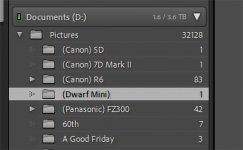
The folders directory on the left hand side in not showing empty folders. Is this normal behaviour for Lightroom Classic, and can it be fixed somewhere in settings?

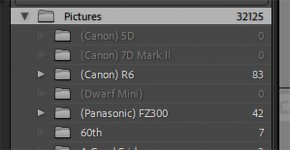
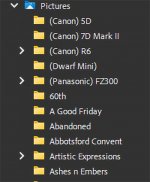
Folder list in Photoshop showing all folders. Note the Canon 5D, Canon 7D and Dwarf Mini directories are empty.
PS.jpg


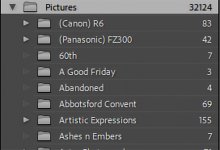
Canon 5D, Canon 7D and Dwarf Mini folders are missing.
LR.jpg
 
Last edited:
Thanks for posting that video Tel, but none of the issues on the video were what I have. If you look closely at the screenshots I posted you can see that there is not even a ? nor are the folders greyed out.

Once thanks again for posting.
 
  • Like
Reactions: TG.
I think (but am not 100% sure), the folders view in LR only shows a folder IF it has had an image in it your LR catalogue.
IE if the (Canon) 5D folder has never had a image in it as far as LR is concerned, it won't had added it to it's folder list (unless it had sub folders with images in, so was needed to show the tree)
 
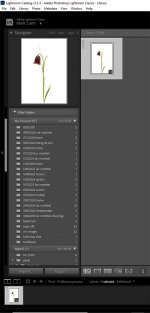
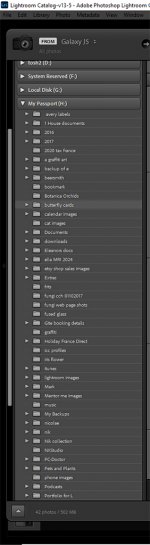
maybe obvious but you have selected import - so as to see all the folders and then select the ones you want to import and can then browse any of them in Lightroom? as you can see 1st is simply opening LR and selecting H drive, 2nd is then selecting Import - lots of folders to select to import them into the catalogue

lr1.jpg lr2.jpg
 
Last edited:
The folders directory on the left hand side in not showing empty folders. Is this normal behaviour for Lightroom Classic, and can it be fixed somewhere in settings?

Folder list in Photoshop showing all folders. Note the Canon 5D, Canon 7D and Dwarf Mini directories are empty.
View attachment 479317


Canon 5D, Canon 7D and Dwarf Mini folders are missing.
View attachment 479319


Lightroom folders DO NOT have to have images in them.

To add the missing folders just click on the ADD(+) button at the top of the FOLDERS panel and then navigate to the missing folders.
 
Thank you everyone for your replies.

This appears to be the case
I think (but am not 100% sure), the folders view in LR only shows a folder IF it has had an image in it your LR catalogue.
IE if the (Canon) 5D folder has never had a image in it as far as LR is concerned, it won't had added it to it's folder list (unless it had sub folders with images in, so was needed to show the tree)

I had just run synchronize on the Pictures folder and that's when I noticed the missing folders.
maybe obvious but you have selected import - so as to see all the folders and then select the ones you want to import and can then browse any of them in Lightroom? as you can see 1st is simply opening LR and selecting H drive, 2nd is then selecting Import - lots of folders to select to import them into the catalogue

This also appears to be the case.
Lightroom will show a folder that is empty; e.g. you deleted the picture(s). But LR will not create the folder unless an image was imported there. i.e. it will not import an empty folder.

I tried this and it did not work.
Lightroom folders DO NOT have to have images in them.

To add the missing folders just click on the ADD(+) button at the top of the FOLDERS panel and then navigate to the missing folders.


I added an image to each of the "missing" folders and re-synchronized the pictures folder and the "missing" folders showed up.
LR1.jpg

I then deleted the images and re-synchronized the pictures folder and the folders now show with 0 pictures.
LR2.jpg

Thank you everyone for your help.
 
I tried this and it did not work.
Lightroom folders DO NOT have to have images in them.

To add the missing folders just click on the ADD(+) button at the top of the FOLDERS panel and then navigate to the missing folders.

That does work; at least on a Mac. But from Mark's picture it looks like that might not be available on Windows.

Instead you can use the Library > New Folder menu option/shortcut. This allows you to select/create folders and sub-folders for organization; without leaving LR and having to trick it into syncing. I would have deleted the images from within LR...
 
Last edited:
In windows you click on the Import at the bottom to show all the folders - then click on the folder you want it shows you the imges with all of them ticked then click on Add or untick what you don't want to import so only import the images in the folder you want to work on - then that folder and those images are added to the database for you to see and edit
 
Back
Top