White background

Cris_L

Take That's Biggest Fan
Messages
1,923
Name
Cris
Edit My Images
Yes
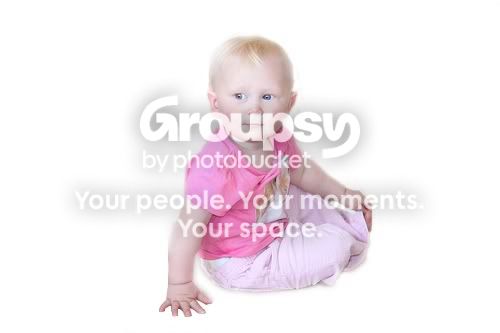
At the weekend I got a couple of good shots of my girlfriends niece, only problem is they were taken in the living room so the back ground isnt too good. I've tried "cutting" the kid out and pasting it into a new window in photoshop but it doesnt look right.

Is there any way of making it look a little better?
 
At the weekend I got a couple of good shots of my girlfriends niece, only problem is they were taken in the living room so the back ground isnt too good. I've tried "cutting" the kid out and pasting it into a new window in photoshop but it doesnt look right.

Is there any way of making it look a little better?

You can always use the dodge tool at 100% to paint in the white background, but if the image is a full body one, then you'll get that look as though they're floating in no man's land. If you haven't got the feet in, it could work but probably wouldn't look anywhere near as good as if you'd actually used a white background.
 
Ah ok, cheers. so I assume when you see portraits against a white background I assume that this is nearly always because that was the colour of background used?
 
In the majority of cases it will have been done on a white background with some sort of studio lighting.
 
Ah ok, cheers. so I assume when you see portraits against a white background I assume that this is nearly always because that was the colour of background used?

Mostly yes, what you could also do is what Dave suggested, but if it's a full body shot, you may be able to get a nice crop around it maybe just above the knee line, why not post it up here so we can take a look, and maybe give you some ideas :)
 
Cheers that would be good. I have a couple more along the lines of these two but I tyhink these are the best. I think the focus could of been sharper.

These are the jpg's, i do have them in RAW format too..

4859790666_84845b905f.jpg


4859168583_b1272b3394.jpg
 
A very quick play, but it give's you the idea a bit with the white background, and with the original file you could do quite a bit more :)

baby1copy.jpg
 
Wow thats really good! do you mind if I ask how you did it?

Sure, first open your photo in photoshop, then what i do is go around the outside bits using the quick selection tool in the left hand side tool bar, then i go to edit-fill and when the box appears make sure you have white as your colour and click fill, what you have selected should now go white, then i go to the magnetic lasso tool in the left hand side tools again, then just move around the subject till you join the ends, then go to select-modify-feather and when the box appears select a radius of about 3 pixels, then go back to select-inverse then click once, then go back to edit fill and fill white again and you should be done.

There are various ways of doing it, but that's just one of them i use, also you need to play quite a bit so you can try and leave some shadow around parts of the subject to stop the floating affect, Youtube can be a great source for tutorials when it comes to things like this, hope i've helped a bit anyway :)
 
Back
Top