- Messages
- 466
- Name
- Neil
- Edit My Images
- Yes
Since profiling my laptop screen a while ago, I have been plagued with the custom profile dropping out. This normaly happens just after the logging on, or anytime a the graphics card feels the need to re-assert itself or the laptop is taken into/out of power saving of any form  . Having a good read, this appears to be a well known hang over from the useless Vista days, and not exclusively for laptops, where profiling a display became much more unreliable than XP.
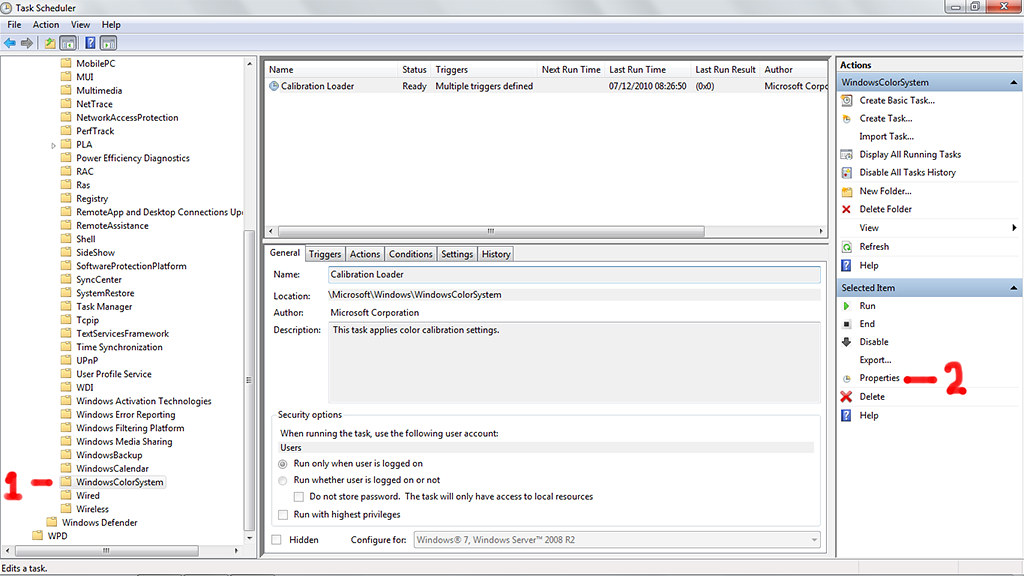
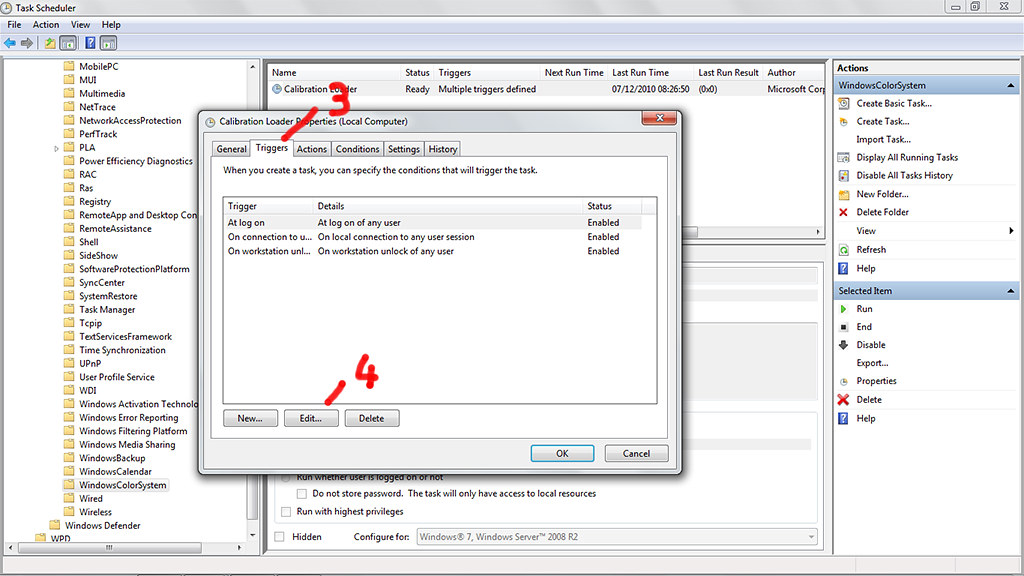
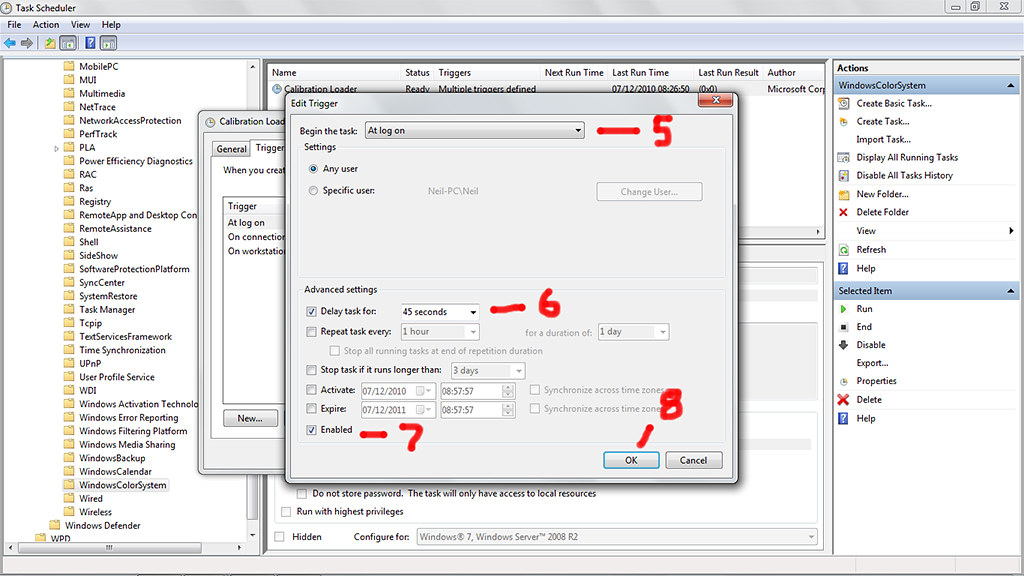
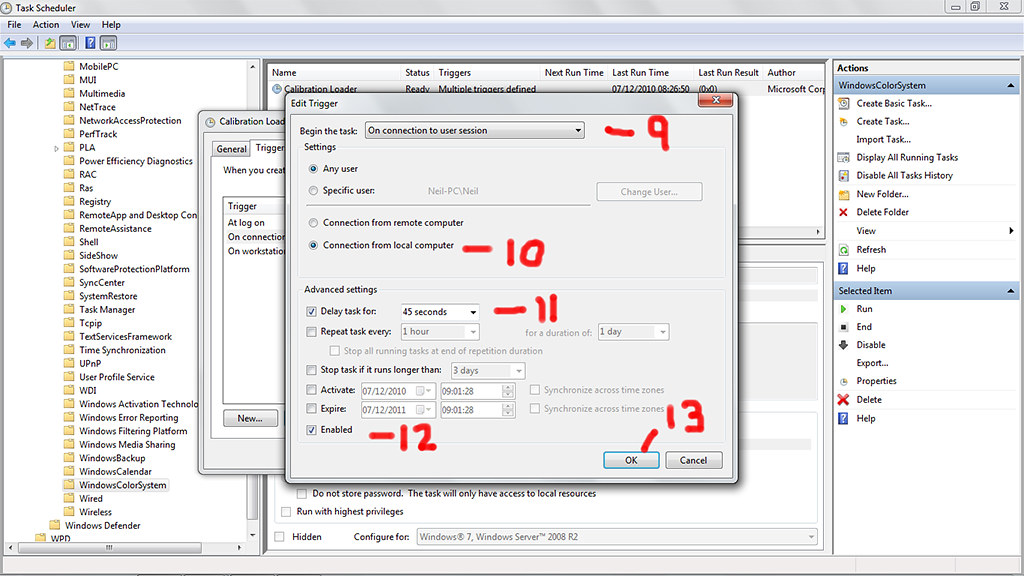
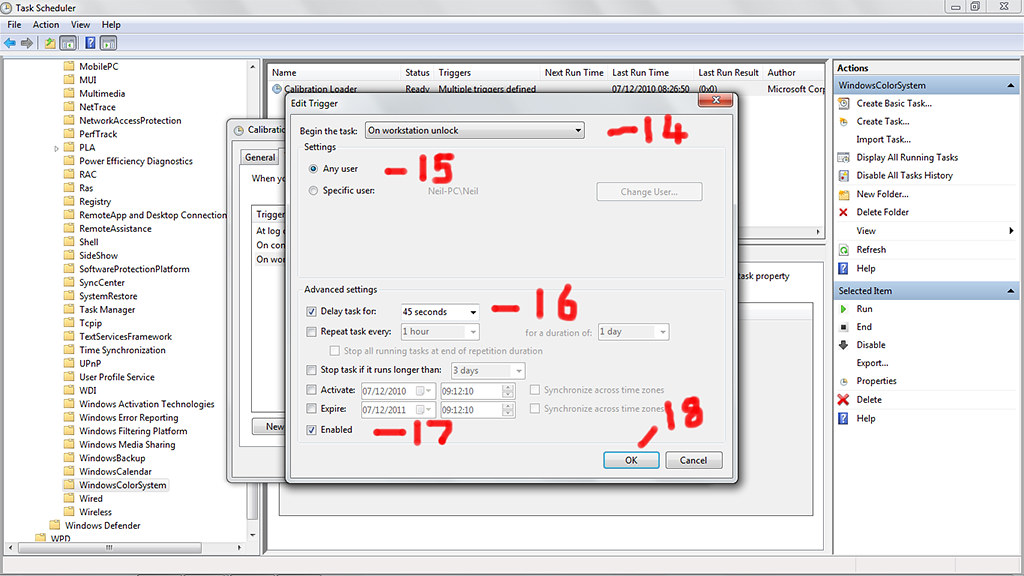
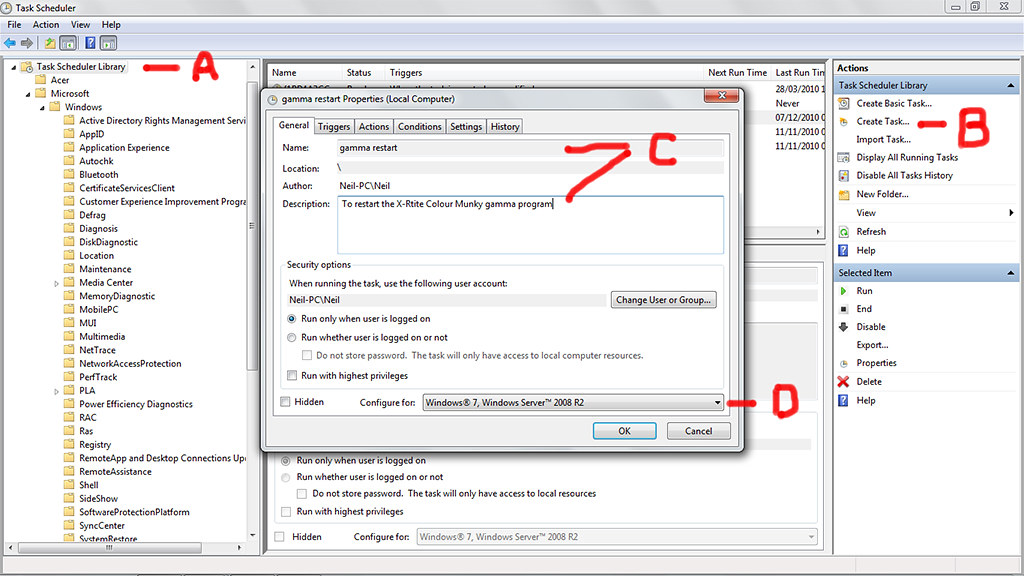
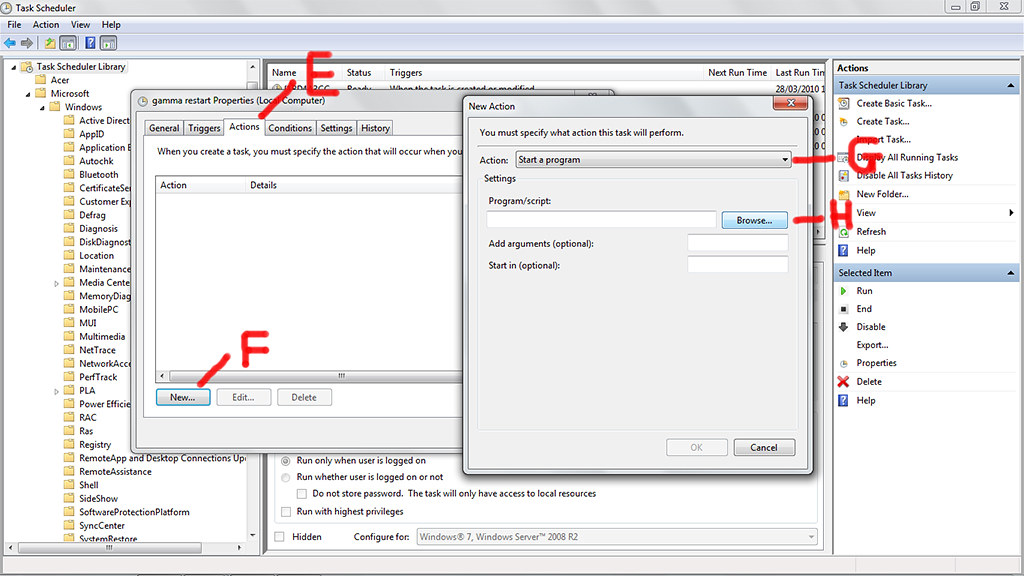
For ages, i was re-booting the laptop to get it to reload the profile. Theres two ways, the first part here, being manual as required. The second way is using the Task Scheduler to re-start the tasks in Part 2
Part 1. (Manualy reloading the profile)
1. Firstly, open up the control panel and locate the 'Colour management' icon. (I have dragged a copy of this onto my desktop, as it is a regular requirement)
2. Open the 'Colour management' program and select the 'advanced' tab. Then select 'Change system defaults' (this opens another window)
3. Select the device drop down to show 'Display 1' . Hopefully your custom profile will be listed and shown as the default... if not, carry on, otherwise skip to 5.
4. to select the monitor profile, if it is already shown, but not the default, select it and then press the 'set as default button. otherwise click 'Add' and find your custom profile from the list, followed by selecting OK. Make sure your new profile is selected as the default.
5. Select the advanced tab and ensure the 'Use Windows display' is ticked.
6. With the tick in place and the profile set as default, click close. That is now the setup complete.
-----------------------------------------------------------------------------
7. When the profile drops out, open up the colour management program. select the advanced tab and click 'Reload current settings'. Close.
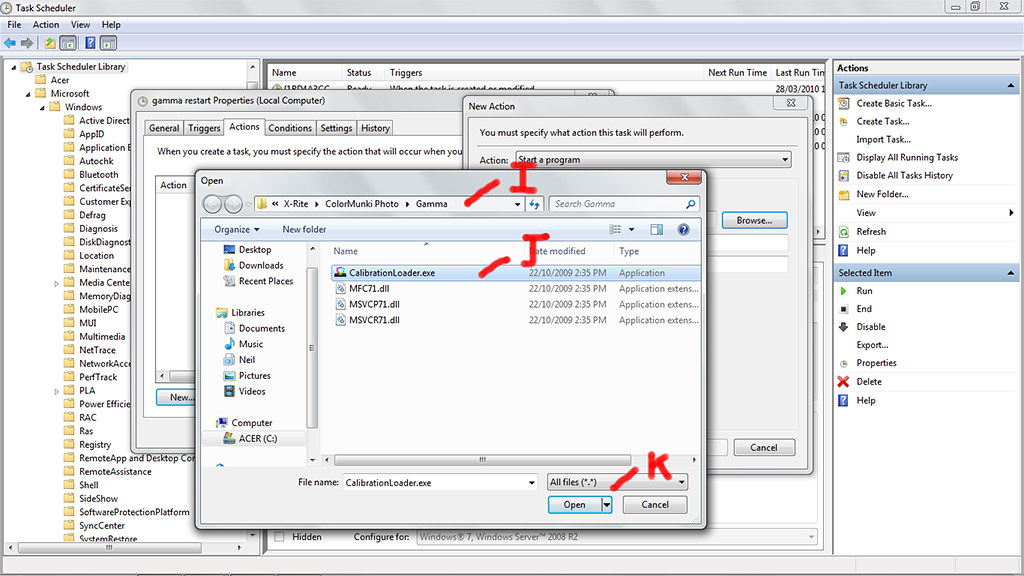
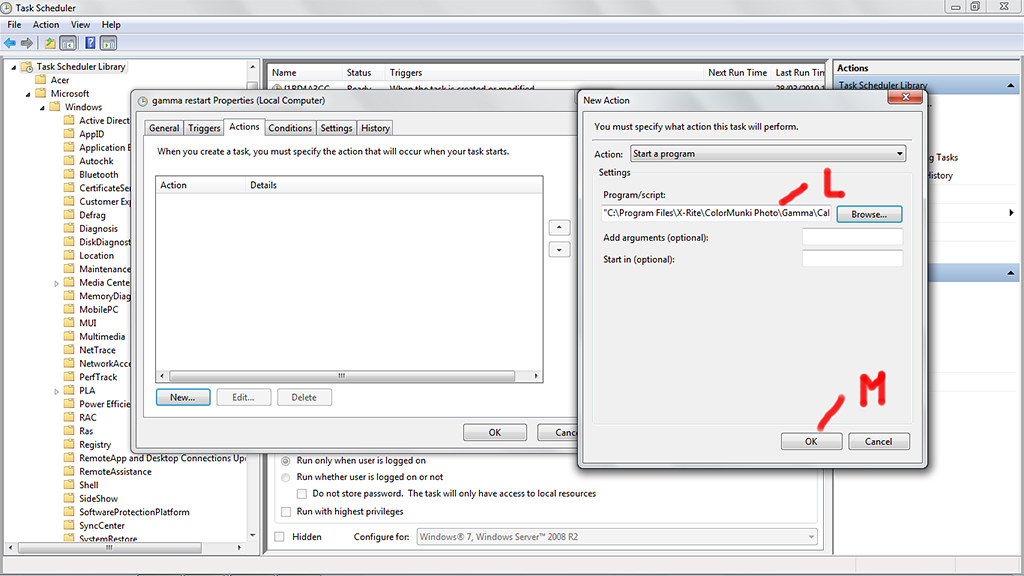
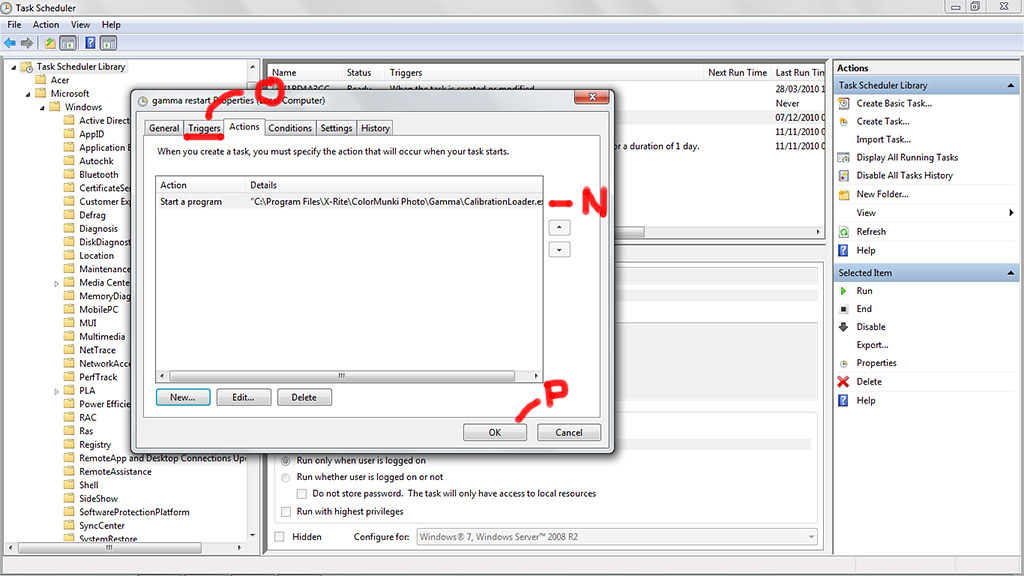
I also have a shortcut to the gamma loader saved on my desktop, as sometimes this needs a push in the right direction. For me with x-rite colour monkey, this was found >>> C:\Program Files\X-Rite\ColorMunki Photo\Gamma\Calibration Loader.exe.
I hope that helps, as I have pulled my hair out and, was even considering a Mac
 Now it is just a few clicks ro restore the profile as required.
. Having a good read, this appears to be a well known hang over from the useless Vista days, and not exclusively for laptops, where profiling a display became much more unreliable than XP.For ages, i was re-booting the laptop to get it to reload the profile. Theres two ways, the first part here, being manual as required. The second way is using the Task Scheduler to re-start the tasks in Part 2
Part 1. (Manualy reloading the profile)
1. Firstly, open up the control panel and locate the 'Colour management' icon. (I have dragged a copy of this onto my desktop, as it is a regular requirement)
2. Open the 'Colour management' program and select the 'advanced' tab. Then select 'Change system defaults' (this opens another window)
3. Select the device drop down to show 'Display 1' . Hopefully your custom profile will be listed and shown as the default... if not, carry on, otherwise skip to 5.
4. to select the monitor profile, if it is already shown, but not the default, select it and then press the 'set as default button. otherwise click 'Add' and find your custom profile from the list, followed by selecting OK. Make sure your new profile is selected as the default.
5. Select the advanced tab and ensure the 'Use Windows display' is ticked.
6. With the tick in place and the profile set as default, click close. That is now the setup complete.
-----------------------------------------------------------------------------
7. When the profile drops out, open up the colour management program. select the advanced tab and click 'Reload current settings'. Close.
I also have a shortcut to the gamma loader saved on my desktop, as sometimes this needs a push in the right direction. For me with x-rite colour monkey, this was found >>> C:\Program Files\X-Rite\ColorMunki Photo\Gamma\Calibration Loader.exe.
I hope that helps, as I have pulled my hair out and, was even considering a Mac
Now it is just a few clicks ro restore the profile as required.
Last edited: