Calibrated my monitor, how do I know it's ok??

andy_fozzy

SPAM Merchant
Messages
7,450
Name
Andy!
Edit My Images
Yes
Recently bought a monitor calibrator, RTFM :D
done what I was supposed to do etc......

There was a part where I had to adjust the RGB colours so they where as close to the centre of the scale as possible, but no matter how I tried, I could not get the blue in the centre of the scale.
The green and red were bang on.........

So how do I know that I have succesfully calibrated?
Would my pics look good on my computer AND somebody elses.....???

I shot a wedding yesterday, and my pics just HAVE to be spot on, as there will be an album printed, website stuff etc......

TIA, Andy
 
Depends on your final destination for the images.
If you are producing prints then send a couple of test prints to your lab and see how they come back. Personally I wouldn't worry too about web use as 99.9% of people are viewing the images on uncalibrated monitors/phones etc.

I've always calibrated my monitor, so I know if a client rings up and says they are a bit dark/light/warm/cold etc etc I know what I sent was spot on and they need to adjust the settings at there end. Most people just get their £99 dell screens out of the box, switch on and that's about it.
 
Cheers Ed, good answer.

There will be some printed, but mostly I reckon they will be viewed on a £99 Dell monitor!!!
 
It's quite complicated this but my understanding is that your monitor will now be showing the colours as truly as it can. They will look different on other monitors, particularly uncaibtrated, most of which will be operating in the sRGB colour space. When it comes to printing I think you have two choices. You can get the profile from the printer for the printing method and paper then load this into photoshop and proof it, making adjustments as necessary or let the printer know what you've edited it in and they will make the adjustments. There's an excellent guide on this on the native digital website. It's basically a pdf book. You have to add it to your basket and check out etc but it's is free and you are immediately sent a download link to download your one free copy. They're a very helpful company too. I hope this helps and could say a lot more but am in the middle of a printer calibration nightmare at the moment and have had enough of it for now - I need a couple of days without thinking about it or I'm liable to throw my printer out of the window!
 
Having problems getting blue in the centre of a scale sounds very much like the issue I had with my Samsung 226BW monitor using a Spyder3.. In order to get the luminance to match my Dell 2209WA (130 cd/m^2 I think) it had to be cranked up really high on the brightness/contrast which in turn seemed to hammer the blue level displayed. Increasing the blue in order to meet the Spyder3 measurements so that the scale looked good while making the kelvin and luminance also acceptable was a serious juggling act.
I was fortunate to have a second (far better) monitor alongside to compare it to so I am happy it is calibrated as best as it can be.

If you doubt yours either post a picture processed on your monitor so others can check (cheap) or get a sample print done (cheap enough with DSCL who in my experience match my monitor damn well).
 
Thanks for the replies chaps.
Although I haven't had time to read them properly, I will do so at work tomorrow :D

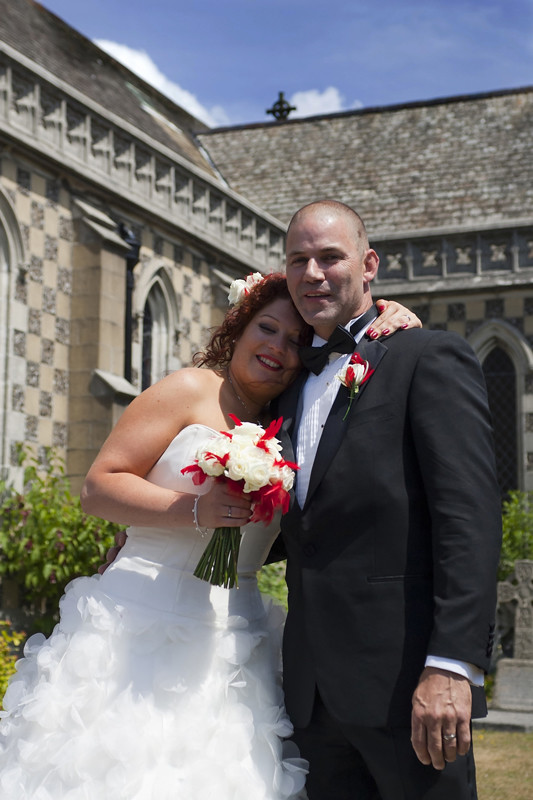
Here is an edited shot from my wedding shoot Saturday.
On my monitor it looks terrific!!

4761946106_9a1de05b75_b.jpg
 
I too have struggled getting one of the colours (I forget which) within the range. Spyder 2 and an expensive Sony monitor. I only managed it after giving the brightness a tweak [up, I think]. I've had loads of prints done [Aldi 12x8 dirt cheap] and they came back spot on.
 
Having problems getting blue in the centre of a scale sounds very much like the issue I had with my Samsung 226BW monitor using a Spyder3.. In order to get the luminance to match my Dell 2209WA (130 cd/m^2 I think) it had to be cranked up really high on the brightness/contrast which in turn seemed to hammer the blue level displayed. Increasing the blue in order to meet the Spyder3 measurements so that the scale looked good while making the kelvin and luminance also acceptable was a serious juggling act.
I was fortunate to have a second (far better) monitor alongside to compare it to so I am happy it is calibrated as best as it can be.

If you doubt yours either post a picture processed on your monitor so others can check (cheap) or get a sample print done (cheap enough with DSCL who in my experience match my monitor damn well).


On my i1match software the recommended luminence is 120 and in the guide I linked to it's generally 100-120. What Kelvin value are you targetting?

What can happen is if the monitor controls struggle to get up to the target level (130 in your case and probably 6500K) changes are applied at the profile level through the graphics card and this can cause colour casts.

However for LCD screens, to avoid this you should choose the native setting. In the case of my laptop there was a strong blue colour cast when I targeted 6500K but when I selected native, the colours were much better. The only problem is the final Kelvin value was around 4500K which is very low. I was originally trying to match to my Dell 2209WA which as it happens is the ideal 6500K.

That said I have left the laptop at the native setting as it looks far far better than trying to achieve 6500K. I set the luminence to 120 as although the software recommends 90 for laptops, the brightness adjustments are very limited on the laptop (very few steps) and I couldn't get anywhere near 90 or 100 so went for 120 as recommended for LCD.
 
Cheers mate.
Getting a bit technical for me now :D

I think I was going for 6500K. Which is what it's on at the moment.

Oh and I shall be downloading that free manual this evening ;)
 
Back in January I got a request to shoot a presentation for a local company half an hour before it was due to start and they required the photographs before the night was out.
I edited the images on my uncalibrated monitor and took them to Tesco to be printed - well, I was in a hurry. I got them back with a sickly yellow cast but the customer was delighted that I had managed to pull it off.
I bought a Spyder Pro 3 and calibrated the monitor and when I checked the before and after, the before was a lot bluer than the after.

I retrieved the original files and reworked them and took a selection to Tesco to see if there was a difference and this time they were spot on.
On the uncalibrated screen I must have been warming the shots to make them look the way they should have been when they were ok to start with hence the yellow cast.

BTW, I think the wedding photograph would have benefited from a burst of fill-in flash to lift the shadows in their faces.
 
After a lot of experimenting 90 luminance works best for me on my monitor. Get some prints done by a good lab and compare print to on-screen preview, that's the test that matters.
 
Just read the guide and it will explain what you need to know from screen to print.
 
Back
Top