
Help Req - Why does my screen look like this ? - thanks Grumpybadger

dinners

In Memoriam
Messages
15,745
Name
Phil
Edit My Images
Yes
A newish screen HP2159v is now on one of my PC's - the main one I use for photography work.

It replaced an old, small, nice and sharp Dell screen.

Anyway..........

Photographs that have a lot of dark areas (but not all of them) turn to lego.

The screen does get used for watching DVDs / games etc and is fine but for photographs :thinking:

Anyway - Grumpybadger let me post this as it's a great example of the problem.

Here's the shot

PVEB0498-Edit.jpg


It's obviously just a snap of my screen but this should give an idea of how the above shot looks to me........
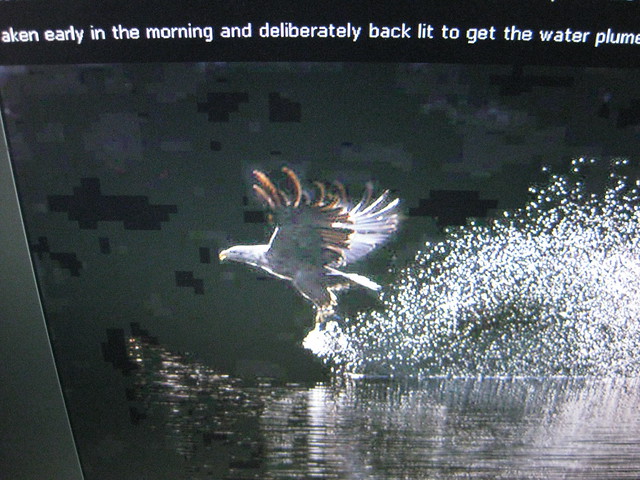
4950079254_f37dbbcf7f_z.jpg


I'll need to see this post on another screen to check if what I've posted appears as i think it will to everybody else - hmm

Anyway - Any help would be welcome.

Cheers.
 
Last edited:
First off check the connection is tight, if so then suspect your graphics card, try hooking up another monitor to make sure.
 
The connection is fine and the old screen still performs fine.

Graphics card perhaps can't cope with this screen ?
 
Could be... what screen size and colour depth do you have defined in the display control panel ?
 
Could be... what screen size and colour depth do you have defined in the display control panel ?

The screen is 1920 x 1080

In my PC display options I've had to set to the following:

1600 x 900 as the aspect ratio is correct

but also have options for

1600 x 1200

1920 x 1200

I updated graphics driver but it says I have the latest available.
 
Are you using HDMI or VGA to connect the display? HDMI will be loads better but based on the resolutions you listed I'm suspecting VGA.

In any case, you should definitely run it at the native 1920x1080 and 24bit color.

Also make sure you don't have any "movie mode" or MPEG artifact reduction settings on in the monitor. Possibly reset it to factory defaults first of all.
 
Are you using HDMI or VGA to connect the display? HDMI will be loads better but based on the resolutions you listed I'm suspecting VGA.

In any case, you should definitely run it at the native 1920x1080 and 24bit color.

Also make sure you don't have any "movie mode" or MPEG artifact reduction settings on in the monitor. Possibly reset it to factory defaults first of all.

Was the old monitor lower resolution? I wonder if it is dropping back from 24bit colour due to performance issues at 1920x1080?

have you loaded the inf file for the screen?

Cripes - so much to answer

I'm going back a bit but when we got the monitor - we installed everything off the disk.

I suspect the old monitor was lower resolution ? - The one that came with the Dell PC years ago.

Can't really answer any of the other questions.:thinking:
 
Sounds like your graphics card driver cant handle the Monitors native resolution, given that you say
came with the Dell PC years ago
i would suggest trying to find an updated driver or getting a new graphics card which can handle the monitors native resolution.
 
It says

Intel(R)82845G/GL/GE/PE/GV Graphics Controller
Driver Date 21/06/2005
Driver Version 6.14.10.4342

Latest XP driver was released on 10/16/2007 according to the intel site?

here by the way - http://downloadcenter.intel.com/Sea...ductProduct=Intel®+82845G+Graphics+Controller

edit - also worth a go? (actually 2nd glance it might not support this graphics card.. have a read and see, im leaving the office now..) http://www.intel.com/support/graphics/sb/cs-029955.htm
 
Last edited:
That's surely going to be the "colour quality", bit it's set at 4/8bit. It needs to be 16bit at the lowest, 32bit really.
 
2005 and 1920x1080 do not mix :p

More stating the problem than the cure ;)

Latest XP driver was released on 10/16/2007 according to the intel site?

here by the way - http://downloadcenter.intel.com/Sea...ductProduct=Intel®+82845G+Graphics+Controller

edit - also worth a go? (actually 2nd glance it might not support this graphics card.. have a read and see, im leaving the office now..) http://www.intel.com/support/graphics/sb/cs-029955.htm

Will check it.

That's surely going to be the "colour quality", bit it's set at 4/8bit. It needs to be 16bit at the lowest, 32bit really.

On this PC It says it's set to Highest (32 bit) Colour Quality in the Display Properties.

Just to add - It's only very dark areas on random photographs that it does this on. 90% of the time (even on black) it appears fine.
 
Last edited:
My guess is a new graphics card is required...........

.........but I've been wrong before.
 
Have you tried " reset to manufacturers default" on the monitor. Make a note of all the settings first in case you need to go back to them. See if this makes any difference. I'd also drop the resolution to something around 1024 at the same time. This will ensure the video card is not overworked.

If this works you then have a base point to work from. You can then start making changes knowing that this (hopefully) works and can revert back to
 
Thanks everybody for the help.

I updated the graphics driver to the latest one and although it did update - it still didn't deliver any display options in keeping with the screen.

I 'reset' the screen - which switches it to 'Recommended Setting' 1920 x 1080 60Hz but then a message pops up on the screen saying it is being auto adjusted to 1440 X 900 60Hz.

This confuses me a tad as the display options on the PC are set to 1600 x 900
 
It says

Intel(R)82845G/GL/GE/PE/GV Graphics Controller
Driver Date 21/06/2005
Driver Version 6.14.10.4342

According to the Intel Datasheet for that controller, it's capable of driving


an analog display up to 2048x1536 at 60 Hz refresh​

or

a digital one (over DVI) up to 1920x1080 at 85 Hz. There is one interesting note, though​


Intel said:
Can combine two, 12-bit channels to form one 24-bit
interface: Supports flat panels up to 2048x1536 at 60 Hz or dCRT/HDTV at 1920x1080 at 85 Hz

Not sure if the combining two, 12-bit channels is significant here... If there's something funky happening with the graphics controller, it might account for the blockiness :thinking:

It might be worth switching from a VGA to DVI connection to your monitor or vice-versa to see what happens.

The controller shares Video RAM with the main CPU, allocated dynamically by the OS on request by the driver. Another Intel note on the 82845G states that on systems with more than 128MB of RAM installed, up to 64MB can be allocated for VRAM "with driver version 11.1 and later. Driver versions prior to 11.1 are limited to a maximum of 48MB"

You might be running into a shortage of VRAM with the larger display. v6.14 is a long way from 11.1, though, and even 48MB ought to be enough to display a photograph on screen. :suspect:

A couple of other things to check:

http://www.intel.com/support/graphics/sb/CS-022544.htm

- Run the Display Mode/Resolution Wizard.
- as per the advice on that page, check to see if you have the latest .INF file/monitor driver for your monitor.

- Does the display issue affect all instances of the same photo in all applications? (i.e. Photoshop, or if you save it as a JPEG and open the file in Internet Explorer do you see the same thing?).

- Do you see the same problem when you drop the resolution of the display down?

BTW, what version of Windows are you running?

P.S. I'm far from being a Windows expert - all of the above is working from first principles, but much of it may be b***s
 
Last edited:
Cheers Rob.

There's a lot in your reply and I only have a fairly basic understanding when it comes to 'fiddling about' so I'll come back and read over it again tomorrow.

As for the easy bits:

latest .INF file/monitor driver - checked for updates (anything newer than the disc that was supplied) and it said I had the latest.

Which version - WIndows XP

Cheers

Phil


Windows XP
 
Back
Top